
Worksheet printing problems disrupt lesson schedules, delay Sunday school programs, and frustrate homeschooling families at the worst moments. The common worksheet printing challenges educators face range from jobs that refuse to print to pages that arrive with clipped edges or completely blank sheets. These issues cost time and paper. This guide covers the most frequent printing difficulties, explains exactly what causes them, and gives you practical steps to fix each one.
Table of Contents
- Key takeaways
- 1. Troubleshooting why your worksheet won't print
- 2. Fixing layout issues in Excel and Word worksheets
- 3. Solving paper size and print clipping problems
- 4. Managing print queue problems with multiple copies
- 5. Fixing blank pages and poor print quality
- 6. Quick reference: worksheet printing challenges at a glance
- My honest take on worksheet printing mistakes
- Print-ready worksheets with Worksheetwonderpro
- FAQ
Key takeaways
| Point | Details |
|---|---|
| Check app and system settings first | Most worksheet printing failures come from incorrect settings, not document corruption. |
| Use Print Preview before every print run | Preview catches layout problems and scaling errors before they waste ink and paper. |
| Match paper size to printer settings | A4 vs. Letter mismatches cause clipped edges and are easy to fix with scaling options. |
| Test with small batches | Printing two copies before a large run reveals multi-job issues and queue problems early. |
| Clean hardware before blaming software | Low ink and clogged printheads cause most blank page problems in worksheet printing. |
1. Troubleshooting why your worksheet won't print
The most frustrating printing worksheet issue is a job that simply does not print. Microsoft Support recommends verifying printer selection, checking printer status, reviewing page layout, and running the printer troubleshooter before assuming the document itself is corrupted.
Start by confirming the correct printer is selected in the print dialog. A common error is sending the job to a PDF printer or a disconnected device. Check whether the printer shows as offline in Windows settings. Restarting the print spooler service (found in Windows Services) clears stuck jobs without rebooting the entire computer.
If the problem continues, try printing a different document or a simple test page. Fast source isolation at the app, system, or printer level is the fastest way to locate the failure point. Outdated or corrupted printer drivers cause many silent failures and are worth updating before deeper troubleshooting.
Pro Tip: If the worksheet prints from one app but not another, the problem is almost always app-specific settings, not the printer itself.
2. Fixing layout issues in Excel and Word worksheets
Improper print layout settings are behind many worksheet print quality issues. Setting a print area in Excel and using Page Break Preview gives you direct control over what prints and how it splits across pages.
Common layout problems include:
- Cut-off columns when content extends past the defined print area
- Blank pages generated by stray cells or content outside the selected range
- Gridlines appearing on printouts when they should be hidden
- Formulas showing instead of calculated values due to a toggled display setting
Margins and orientation also matter. Switching from Portrait to Landscape orientation often fits wider worksheets on a single page without reducing content size. Using Excel's scaling options, such as "Fit All Columns on One Page," prevents edge clipping on worksheet packets with multiple data columns.
Pro Tip: Turn on Page Break Preview under the View tab in Excel before printing any multi-page worksheet. Blue lines show exactly where the printer will cut each page.
3. Solving paper size and print clipping problems
Paper size mismatches are one of the most overlooked worksheet printing issues. The difference between A4 (210 x 297 mm) and Letter (216 x 279 mm) is small but enough to clip content when the document is set to one size and the printer is loaded with the other.
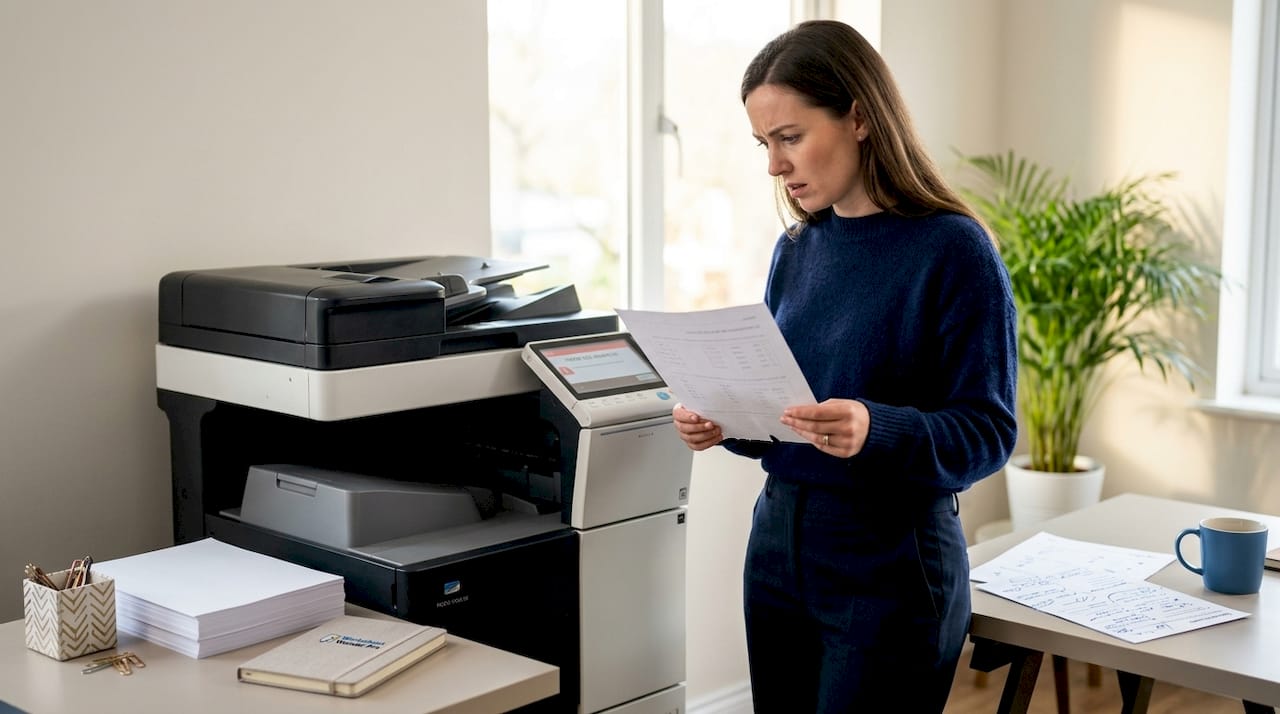
Printer drivers and Windows updates can silently reset default paper size or scaling settings back to "Actual Size," which causes sudden clipping after a period of printing without problems. Many teachers and church administrators only discover this after wasting an entire ream of paper.
The table below explains the main causes of print clipping and the fixes that work:
| Cause | Result | Fix |
|---|---|---|
| A4 document on Letter printer | Bottom content clipped | Set document to Letter or scale to fit |
| Scaling set to "Actual Size" | Edges cut off | Switch to "Fit to Printable Area" |
| Non-printable printer borders | Narrow margin content lost | Widen margins in document settings |
| Borderless printing mode active | Unexpected content loss | Disable borderless mode for worksheets |
Pro Tip: Always use "Fit to Page" or "Shrink to Printable Area" scaling options when printing worksheets you did not design yourself. This prevents clipping without requiring you to edit the original file.
4. Managing print queue problems with multiple copies
Printing multiple copies of an Excel worksheet creates a specific category of printing errors. Excel and certain printer drivers send each copy as a separate print job rather than a single multi-copy job. In managed print environments with print release systems, this means staff or volunteers must release every job individually.
Common signs of this problem include:
- Print queues filling with ten individual jobs when ten copies were requested
- Print release stations showing each copy as a separate document
- Long delays when printing class sets of 25 or 30 worksheets
Running small test batches of two or three copies first reveals whether this behavior is present before committing to a full print run. Printing from a PDF version of the worksheet instead of directly from Excel often sends all copies as a single job, which bypasses this issue in most environments.
5. Fixing blank pages and poor print quality
Hardware problems cause a large share of blank page errors. HP advises checking ink levels, removing protective tape from new cartridges, and running printhead cleaning cycles before investigating software or driver problems.
The most frequent hardware causes of blank or faded worksheet printouts are:
- Low ink or toner. Cartridges that show as partially full can still be too depleted to print cleanly.
- Protective tape left on cartridge. New cartridges ship with a pull-tab seal. Missing this tab is more common than expected.
- Clogged printheads. Inkjet printers clog after periods of inactivity. Most printers have a built-in cleaning cycle accessible from the printer utility software.
- Wrong paper type setting. Printing photo worksheets on a plain paper setting reduces quality noticeably.
Run the printer's built-in diagnostic page first. If the diagnostic prints correctly but worksheets do not, the issue is in the file or software settings rather than hardware.
6. Quick reference: worksheet printing challenges at a glance
This table gives a fast overview of the most frequent printing difficulties, their causes, and the fixes that address each one.
| Challenge | Root cause | Fix | Best practice |
|---|---|---|---|
| Worksheet won't print | Wrong printer, offline status, driver issue | Check printer selection, restart spooler, update driver | Print a test page after any driver update |
| Cut-off edges | Paper size mismatch, wrong scaling | Match paper size, use "Fit to Page" | Always preview before printing |
| Blank pages | Low ink, clogged printhead, stray cells | Clean printhead, check ink, set print area | Run printer diagnostics monthly |
| Multiple print jobs | Excel driver behavior | Print from PDF, test with small batches | Use PDF for large print runs |
| Layout problems | Wrong margins, orientation, print area | Set print area, adjust margins, use scaling | Use Page Break Preview every time |
Excel's Normal view does not always reflect what will actually print, which makes this reference useful for anyone printing large worksheet batches for class sets or ministry programs.
My honest take on worksheet printing mistakes
I've worked with educators and ministry teams long enough to see the same printing problems repeat constantly. The biggest one is skipping Print Preview entirely. People assume what looks good on screen will print correctly. It almost never does on the first attempt.
What I've learned is that default print settings are designed for general office documents. Worksheets are different. They have tighter layouts, smaller fonts, and content that reaches close to the page edge. Those defaults cut off content regularly.
My other observation is that most people troubleshoot in the wrong order. They reinstall drivers, restart computers, and call IT support before checking something as simple as whether the correct paper size is selected. Fix the simple things first. In my experience, the fix for print layout errors takes under two minutes once you know where to look.
Training other teachers or church volunteers to run a two-copy test print and use Print Preview before any large run would eliminate the majority of print waste I see in real programs.
— Pamela
Print-ready worksheets with Worksheetwonderpro
Worksheetwonderpro is built to help teachers, homeschool families, and ministry leaders create worksheets that print correctly the first time. Many printing difficulties start with document design problems. Worksheets built with inconsistent margins, wrong page sizes, or overcrowded layouts fail at the printer before any settings are checked.
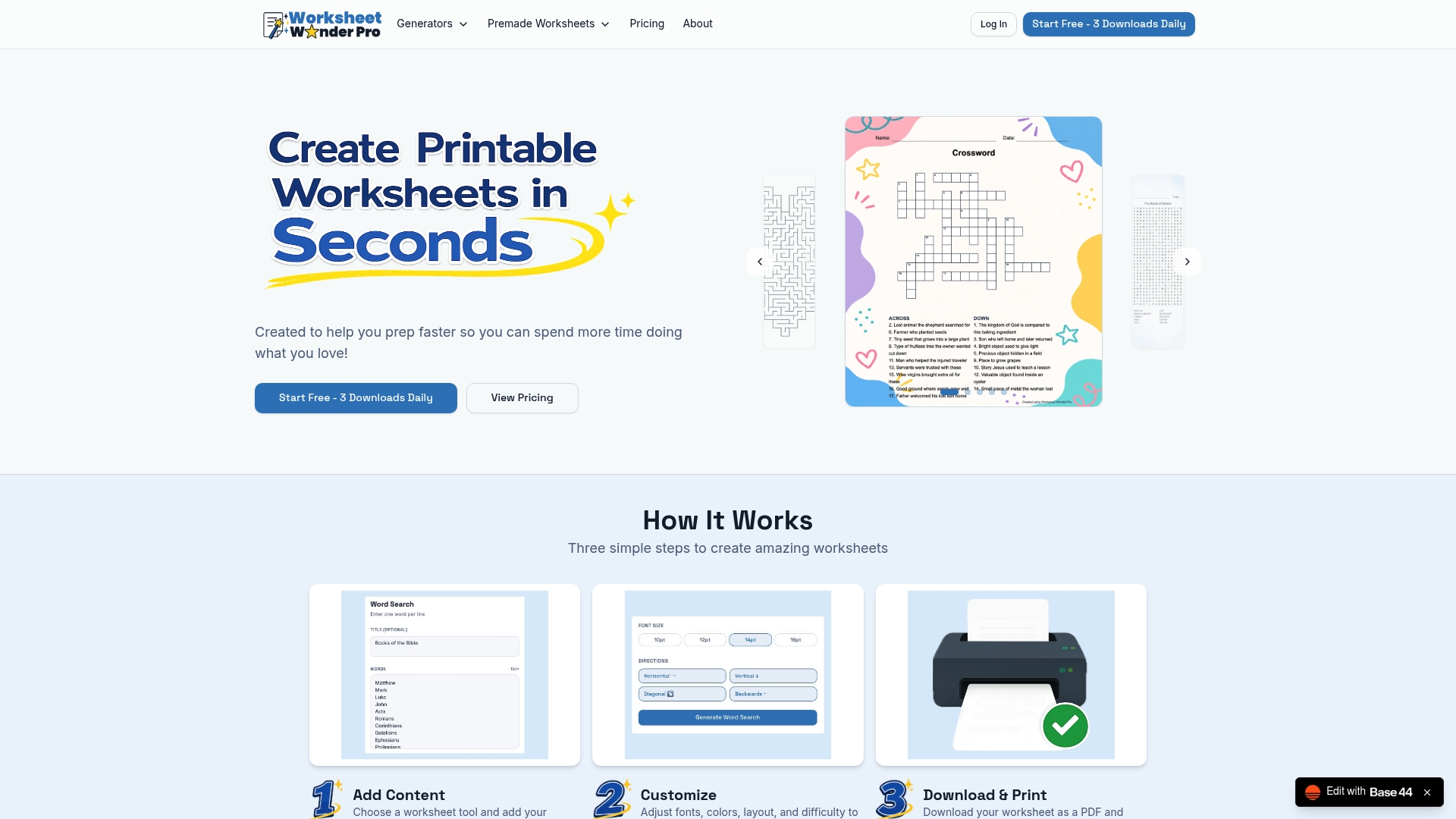
Worksheetwonderpro's tools are designed with print-ready layouts from the start. The platform's worksheet creation tool removes the guesswork from page sizing and margin settings. Educators can also access teacher resources designed for classroom and program use. Visit Worksheetwonderpro to create worksheets that work in print without extra troubleshooting.
FAQ
Why won't my worksheet print at all?
The most common causes are an incorrect printer selection, an offline printer status, or a stuck print queue. Check printer settings and restart the print spooler service before assuming the file is the problem.
How do I stop worksheet edges from getting cut off?
Match your document's paper size to the paper loaded in the printer, and set scaling to "Fit to Printable Area." Paper size mismatches between A4 and Letter are the most frequent cause of clipped edges.
Why is Excel printing each copy as a separate job?
Excel and certain printer drivers send each copy as an individual print job. Printing from a PDF version of the worksheet instead of directly from Excel sends all copies as a single job and prevents queue congestion.
What causes blank pages when printing worksheets?
Low ink or toner and clogged printheads are the leading hardware causes. Check ink levels and run a printhead cleaning cycle before investigating software settings.
How do I prevent layout problems in Excel worksheet printing?
Use Page Break Preview and set a defined print area before printing. Scoping the print area prevents blank pages from stray cells and stops content from splitting across pages unexpectedly.