
Teachers and ministry leaders put real time into building worksheets, yet common worksheet design mistakes quietly undermine that effort. A poorly structured worksheet confuses students, kills engagement, and produces data that is hard to grade or analyze. These problems are not always obvious at first glance. A merged cell here, an ambiguous instruction there, and suddenly the worksheet creates more friction than learning. This article covers the most frequent worksheet design errors and gives practical fixes for each one, so every worksheet you create actually does its job.
Table of Contents
- Avoid data design pitfalls that limit analysis and interpretation
- Properly represent missing and zero data to maintain clarity
- Avoid using formatting tricks to convey information
- Design worksheets as engaging materials embedded in lessons
- Maintain clear information hierarchy with concise instructions
- Align worksheet purpose with assessment type and clarify success criteria
- Why many worksheet design principles focus more on student cognitive flow than just content accuracy
- Improve your worksheets with Worksheet Wonder Pro
- Frequently asked questions
Key Takeaways
| Point | Details |
|---|---|
| Clean data structure | Use simple cell contents and avoid merged cells for clarity and analysis. |
| Consistent data entry | Enter zeros explicitly and use uniform codes for missing data. |
| Avoid confusing formatting | Do not rely on color or style alone to convey meaning. |
| Embed worksheets thoughtfully | Design worksheets as part of lesson plans with chunked activities. |
| Clarify goals and assessments | Match worksheet purpose to assessment type and clarify success criteria. |
Avoid data design pitfalls that limit analysis and interpretation
The most damaging worksheet design errors often live in the data structure itself. When cells are merged or contain multiple pieces of information, analysis tools cannot read them correctly. A cell that holds both a student name and a score, or a measurement unit bundled with a number, breaks any formula or sorting function applied to it.

Avoid merged cells and multiple types of information in one cell for better readability and analysis. This applies whether the worksheet is a printed student activity or a digital data collection tool.
Follow these rules for clean data layout:
- Put exactly one piece of information in each cell
- Use separate columns for names, dates, scores, and notes
- Never place units like "cm" or "lbs" inside a data cell; put them in the column header
- Move comments and metadata to a dedicated column at the end of the sheet
Reviewing worksheet content organization guidelines can help teachers build this habit from the start.
Pro Tip: Before distributing any worksheet, run a quick check. If any cell contains a comma separating two ideas, it likely needs to be split into two columns.
With the foundation of clean data layout clear, let's explore how recording missing or zero values properly can prevent confusion.
Properly represent missing and zero data to maintain clarity
One of the most overlooked worksheet layout mistakes is treating blank cells and zero values as interchangeable. They are not. A zero means something was measured and the result was zero. A blank cell means no data was collected at all.
Record actual zeros as zeros and use consistent null values to prevent misunderstanding blank entries. Without this discipline, spreadsheet formulas produce wrong averages, and automated grading tools flag errors that do not exist.
Here is a simple process for handling missing and zero data:
- Enter "0" explicitly whenever a student scored zero or a measured value is zero
- Choose one null code, such as "NA" or "N/A," and use it every time data is genuinely missing
- Document your null code in a notes column or a separate key at the top of the sheet
- Never leave a cell blank without a reason recorded somewhere in the document
These steps apply directly to creating clean data worksheets that hold up under review or grading software.
Pro Tip: Add a legend row at the very top of any data worksheet that defines what "NA" means. Students and co-teachers will not have to guess.
Beyond data content, design choices about formatting impact how students and software interpret worksheets.
Avoid using formatting tricks to convey information
Color coding and bold text are useful visual tools, but they become a problem when they carry meaning that is not also stated in plain text. A student who is colorblind, or who prints the worksheet in black and white, loses critical information if color is the only signal.
Colors or bold formatting without clear text can confuse interpretation and reduce worksheet clarity. This is one of the most common design pitfalls in both classroom and ministry settings.
Keep these formatting rules in mind:
- Always pair a color or style with a written label or instruction
- Separate the visual design of instruction areas from student data entry areas
- Place all notes and metadata in a dedicated section, not scattered across styled cells
- Test the worksheet in grayscale before printing to catch color-only cues
Checking examples of clear worksheet formatting shows how professional templates separate style from substance. Good clarity in worksheet design means the worksheet works even when stripped of all visual decoration.
Now let's examine worksheet engagement factors tied to overall design and instructional planning.
Design worksheets as engaging materials embedded in lessons
A worksheet handed out without context is just busywork. Effective worksheet design tips always start with placement inside an intentional lesson plan. The worksheet should connect to a specific learning goal, not fill time.
Worksheets must be part of an intentional lesson plan, with activities chunked for attention span, to prevent boredom. This is a consistent finding in classroom research and applies equally to Sunday school and homeschool settings.
Use this structure when designing worksheet activities:
- Identify the single learning goal the worksheet supports
- Break the worksheet into 2 to 4 short task chunks, each taking no more than 5 to 8 minutes
- Add at least one prompt that asks students to explain their thinking, not just fill in an answer
- Include one scaffolded example that shows students what a complete response looks like
Pairing worksheets with flashcard integration can extend recall practice beyond the worksheet itself. Reviewing successful worksheet engagement strategies gives additional models for building this kind of layered activity.
With engagement strategies clear, we move on to how worksheet structure affects student comprehension and navigation.
Maintain clear information hierarchy with concise instructions
Students should not have to read an instruction twice to understand it. Long, multi-part directions are one of the most frequent common teacher worksheet errors. They increase cognitive load and shift student attention away from the actual task.
A consistent sequence, title, instructions, examples, and then activity, combined with clear action verbs helps students understand tasks without re-reading.
Apply these layout principles:
- Start with a short, descriptive title that names the task
- Write instructions in one or two sentences using active verbs like "circle," "write," or "match"
- Include one worked example directly before the first question
- Number every step and keep each step to a single action
Effective worksheet instruction examples show how this hierarchy looks in practice across different subject areas.
The final common mistake we cover is misaligning worksheet purpose with assessment type, which affects feedback and student success.
Align worksheet purpose with assessment type and clarify success criteria
Many teachers use the same worksheet format for both formative and summative purposes without adjusting the design. This is a significant worksheet design error that affects how useful the feedback actually is.
Confusing formative and summative assessment is a common educator mistake. Worksheets should have clear purposes matching their timing and feedback role. A formative worksheet is used during learning to catch misunderstandings early. A summative worksheet measures final competence.
Students also struggle when they cannot tell what good work looks like. Goal confusion is a common cause of breakdown revealed by formative assessments. Fixing this means writing success criteria in plain student language and showing a model response.
| Assessment type | Worksheet purpose | Key design feature |
|---|---|---|
| Formative | Check understanding mid-lesson | Open-ended prompts, space for corrections |
| Summative | Measure final learning | Clear rubric, no scaffolding hints |
| Diagnostic | Identify prior knowledge gaps | Simple recall tasks, no grading pressure |
Use advanced worksheet design strategies to build worksheets that match their assessment role from the start.
Why many worksheet design principles focus more on student cognitive flow than just content accuracy
Most worksheet audits check whether the content is correct. They rarely check whether a student can actually move through the worksheet without getting stuck. That gap is where most improving worksheet design efforts fall short.
Auditing worksheet quality based only on content standards misses student cognitive workflow and engagement effectiveness. A worksheet can be factually perfect and still fail if the instructions are dense, the layout is cluttered, or the tasks jump in difficulty without warning.
The practical test is simple. Watch a student complete the worksheet without any help. Note every point where they pause, re-read, or ask a question. Those moments are design failures, not student failures. Adjusting based on that observation does more for understanding student cognition in worksheets than any content review.
Pacing matters too. A worksheet that front-loads all the hard tasks loses students before they reach the learning goal. Placing one accessible task early builds confidence and momentum. That is not a soft teaching strategy. It is a structural design decision with measurable impact on completion rates and accuracy.
Improve your worksheets with Worksheet Wonder Pro
Avoiding common worksheet design mistakes is easier with the right tools. Worksheet Wonder Pro gives teachers and ministry leaders a structured environment for building worksheets that are clean, clear, and purposeful from the start.
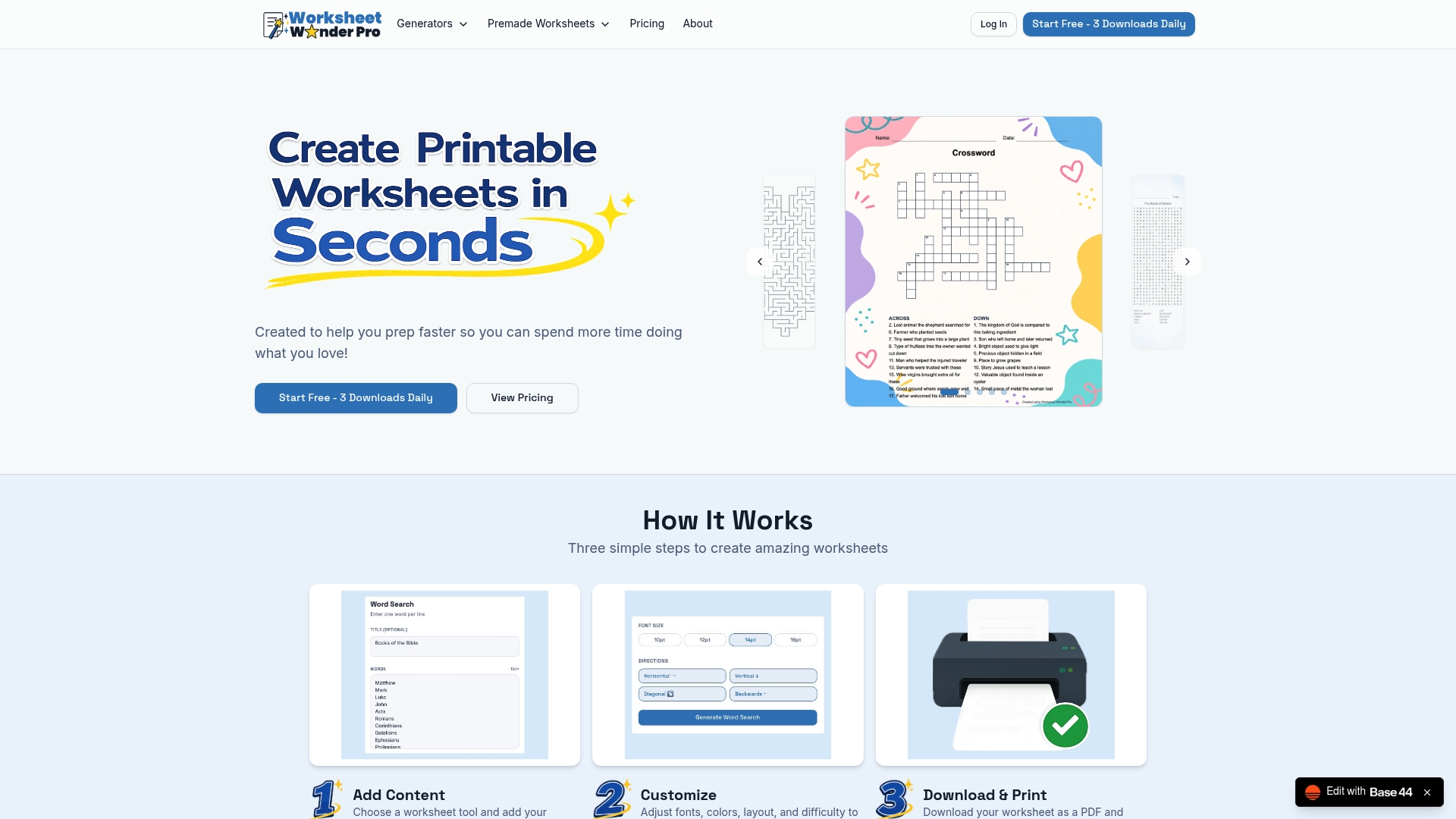
The worksheet creation tools guide users through layouts that keep data fields separate, instructions concise, and activity chunks manageable. For those who want a faster start, premade worksheet templates are built with clear information hierarchy and assessment alignment already in place. Every template follows best practices for worksheets so the structure is never an afterthought. Now you have actionable solutions to elevate your worksheets and avoid common design errors for better student success.
Frequently asked questions
What are the most common worksheet design mistakes to avoid?
Common worksheet mistakes include merged cells, mixing multiple data types in one cell, unclear instructions, and confusing formative and summative assessment purposes. Fixing these issues makes worksheets more effective and easier to grade.
How can teachers make worksheets more engaging for students?
Worksheets must be part of an intentional plan and chunk activities for attention span. Embedding worksheets in a lesson context and using clear, concise instructions also drives genuine engagement.
Why is it important to clarify success criteria in worksheets?
Goal confusion is a common cause of breakdown revealed by formative assessments. When students know what a complete, correct response looks like, they perform more accurately and with less frustration.
What is the difference between formative and summative assessments in worksheets?
Confusing formative and summative assessment is a common educator mistake. Formative worksheets support ongoing feedback during learning, while summative worksheets measure final achievement. Each type requires a different design and level of scaffolding.